![Main Logo White.svg]](https://support.affirmativeusa.com/hubfs/Main%20Logo%20White.svg)
About
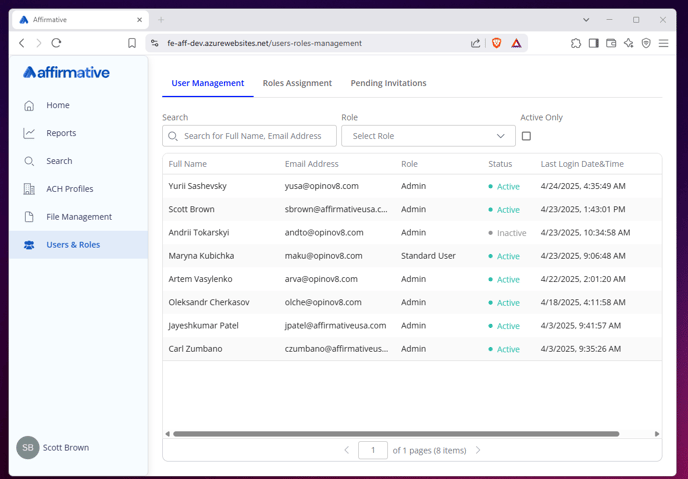
The Users and Roles screen is available to Admin users. This screen is where you will manage your users and their assigned permissions. [The AI should rewrite this paragraph.]
Users
View Users
To access the user management screen, navigate to the left-side menu and select Users & Roles to load the User Management tab. The system will display a list of all users including their name, email address, assigned role, status, and date and time of their last login.
This list can be filtered by using the search and filter controls found at the top of the page.
View a User Profile
To view a user’s profile, you can either double click on the user row or select the more options icon on the table row and choose View from the popup menu.
The users profile card will be displayed containing the user name, the user role, the user profile picture, the user’s status, email address, and the last login date and time.
Password Reset
To request a password reset on behalf of a user, click on the more option button and select Reset Password. The system will send the user an email with a link to reset their password.
Note: Password reset is only available for users who log into the system with the username and password option. Users with single sign on (SSO) will have the password reset feature disabled.
Activate and Deactivate Users
To remove a user’s access, preventing them from logging in, select the user and choose Deactivate. The user’s status will be set to inactive and they will no longer be able to access the system. Please note that the user’s current session will not be terminated. If the user is logged into the system, they will retain their permissions until they log out.
To reactivate the user, simply select the user and choose Activate to reverse these changes.
Add New Users
To add a new user, navigate to the Invitations tab and click the Invite New User button. This will open the invitation modal window.
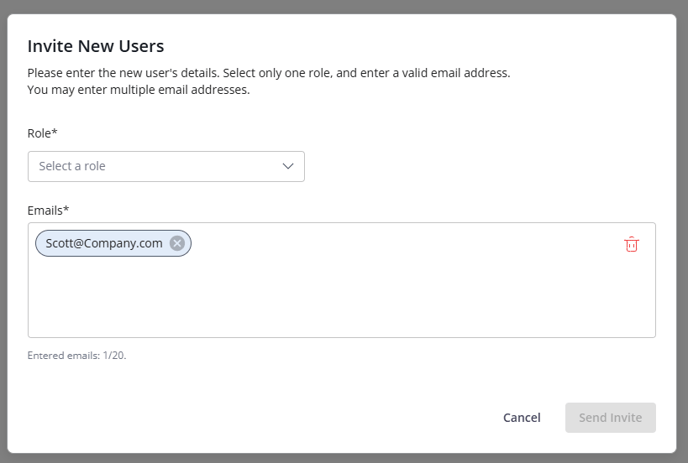
To invite new users to the system, begin by selecting the role the users will be assigned to in the dropdown under the Role heading.
Next, enter up to twenty email addresses in the Emails box. As you enter the user’s email address, each will be converted into a chicklet. To remove a user from your list, click on the “x” next to their email address. To remove all users from the list, click on the delete all icon in the corner of the emails input.
To complete the invitation process, click on the Send Invite button.
View Pending Invitations
To view a list of users who have been invited to the system, click on the Invitations tab.
Roles
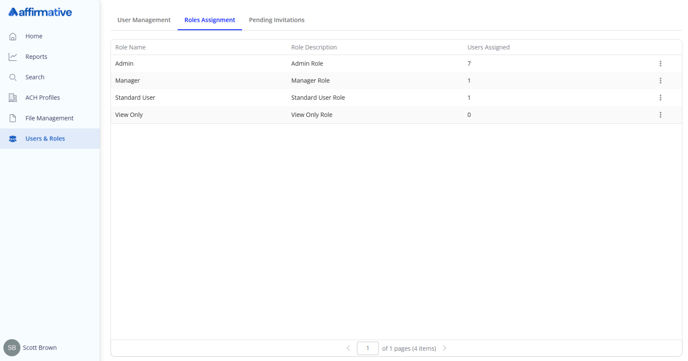
The role a user is assigned to will determine the level of access they have while working in the system. There are four system roles to choose from:
- Admin: Admin users have access to all areas of the system. They are the only users who can manage other users.
- Manager: After admin, this role has the highest level of permissions and can perform all job functions except for user management.
- Standard User: This role is the standard permission set. I need to say something more here.
- View Only: Intended as an audit role, these users will be able to view the system but are unable to make any changes or export any information.
|
|
Admin |
Manager |
Standard |
View Only |
|
Reporting |
|
|
|
|
|
Access Reports |
✅ |
✅ |
✅ |
✅ |
|
Files |
|
|
|
|
|
Access File History |
✅ |
✅ |
✅ |
✅ |
|
Download Files |
✅ |
✅ |
✅ |
|
|
Remove Files |
✅ |
✅ |
|
|
|
Profiles |
|
|
|
|
|
View Profiles |
✅ |
✅ |
✅ |
✅ |
|
Add/Edit Profiles |
✅ |
✅ |
✅ |
|
|
Deactivate Profiles |
✅ |
✅ |
|
|
|
Search |
|
|
|
|
|
Search Transactions |
✅ |
✅ |
✅ |
✅ |
View Roles
To view the list of roles, descriptions, and number of users assigned, click on the Role Assignment tab.
View Role Detail
To view specific information on any role, either double click on the row, or select the more options icon and choose View.
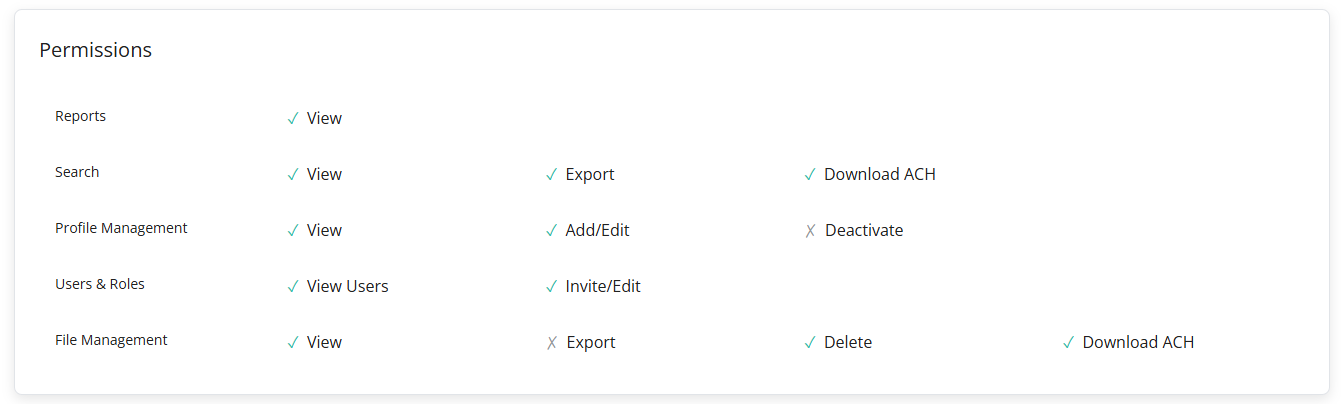
The screen will open to the Role Profile page, displaying the roles permissions in a table and the users currently assigned to the selected role.
Assigning Users to Roles
To add or remove users from a selected role, click on the Modify Users button. This will open the Modify Users modal window.
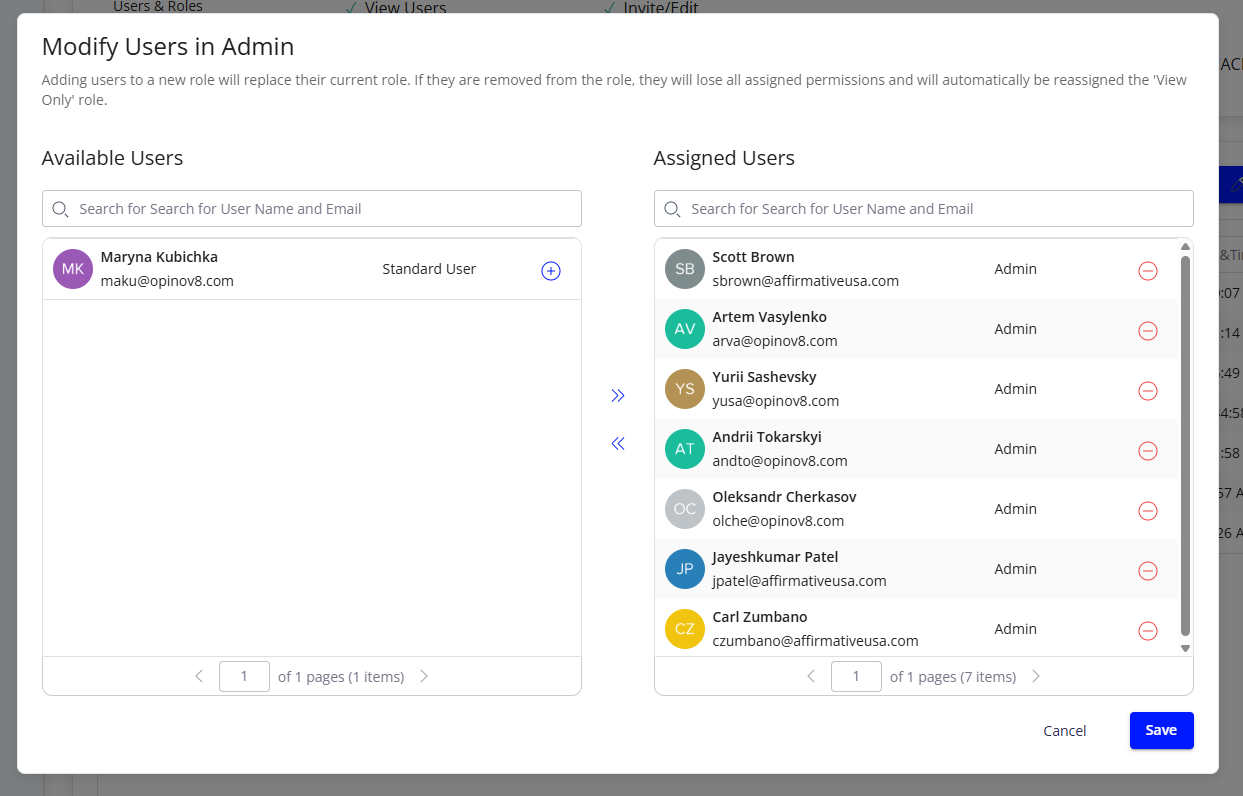
The window is divided into two sections with available users on the left and assigned users on the right. To move a user from their current role to the selected row, either double click on the user or select the plus (+) icon next to their name.
To remove an existing user from the role, either double click on their name or select the minus (-) icon next to their name. Users removed from the assign role will automatically be placed in the “View Only” role by default.
To save your changes, click the Save button.