![Main Logo White.svg]](https://support.affirmativeusa.com/hubfs/Main%20Logo%20White.svg)
Introduction
Welcome to the File Management screen. Here, you can view, download, and manage files that have been uploaded to the system. By default, the screen displays files from the past 30 days. Some options may be unavailable depending on your user permissions.
Getting Started
To open the File Management screen, go to the left-hand menu and select File Management.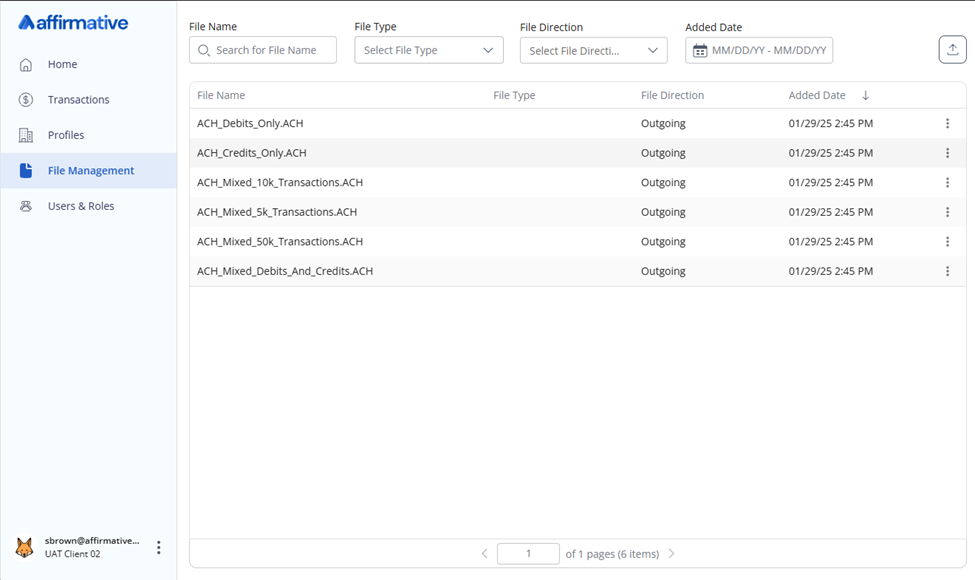
Export File List
To export a list of files, click the Export button located in the top-right corner of the screen. The system will generate a CSV file containing the following details:
- File Name
- File Type
- File Direction (Incoming or Outgoing)
- Added Date
A file dialog box will appear, allowing you to choose the location to save the CSV file.
Searching for Files
By default, the File Management screen displays all files uploaded in the past 30 days. To refine your results, use the filters at the top of the screen:
- File Name – Enter keywords to search by file name.
- File Type – Filter results to show only ACH or FED formatted files.
- File Direction – Choose to display either Incoming or Outgoing files.
- Added Date – Select the date range of when a file was uploaded to the system.
Viewing Files
To view a file directly in your browser:
- Double click the file name, or
- Click the More Options icon (three dots) and select View File.
A new screen will open, displaying the file contents. The file details panel at the top of the screen will display a summary of the file’s contents. The detailed file will be displayed below the file details window.
Note: You can search within the file using your browsers built-in search function.
Downloading Files
To download a file:
- Click the More Options icon (three dots).
- Select Download.
- Choose a location to save the file when prompted.
Note: You must have the Download Files permission to perform this action.
Deleting Files
To delete a file:
- Click on the More Options icon (three dots).
- Select Delete.
- Confirm your choice in the warning dialog box.
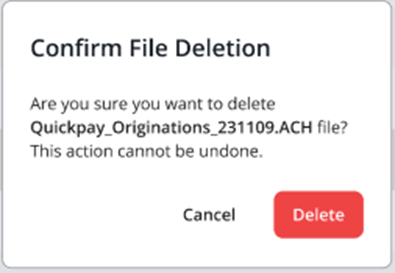
⚠️ Important: Deleted files cannot be recovered.
Frequently Asked Questions (FAQS)
Q: How are new files added to the system?
A: Files are uploaded via a secure FTP server in our datacenter. This connection was set up during your initial onboarding process.
Q: How often are new files added to the system?
A: The system checks for new files approximately every five minutes. Depending on file size, it typically takes 1 to 3 minutes to process and display them.
Q: How can I access files older than 30 days?
A: To view files older than 30 days, you will need to adjust the default filter settings. Click on the date range filter at the top of the screen and select a new time frame to display. All dates selected are based on the date and time the files were loaded to the system.
Q: How do I request access to additional options such as downloading or deleting files?
A: Permissions are managed through the Roles and Permissions module. Please contact your account administrator for assistance.